
If you want to display your rental item in a different look you need to navigate to your Template tab.
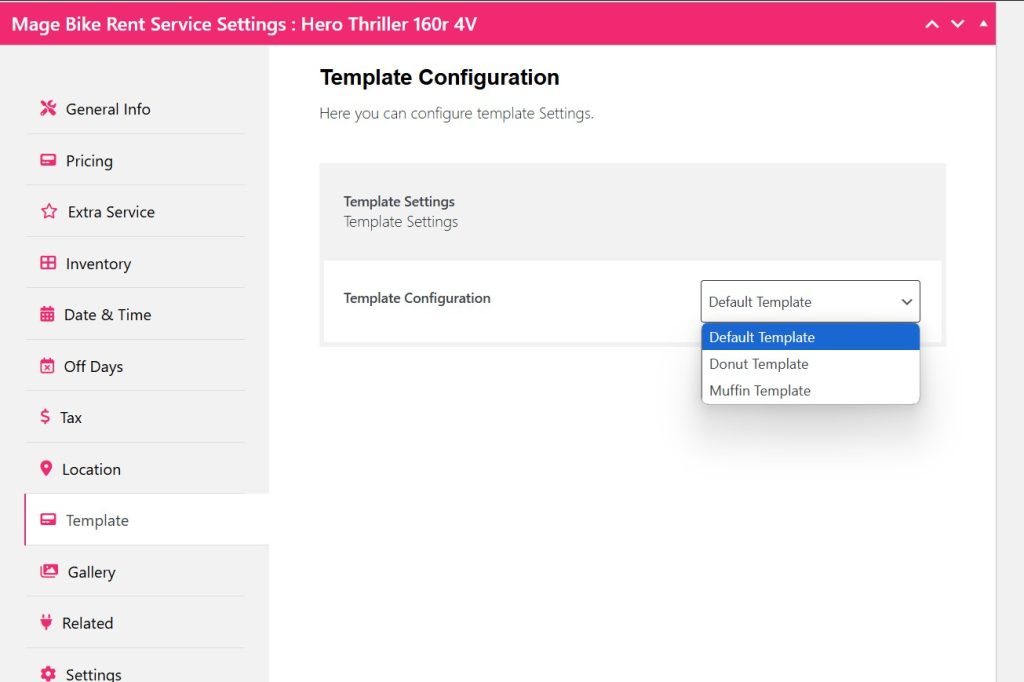
You can choose two more different templates other than the default template.
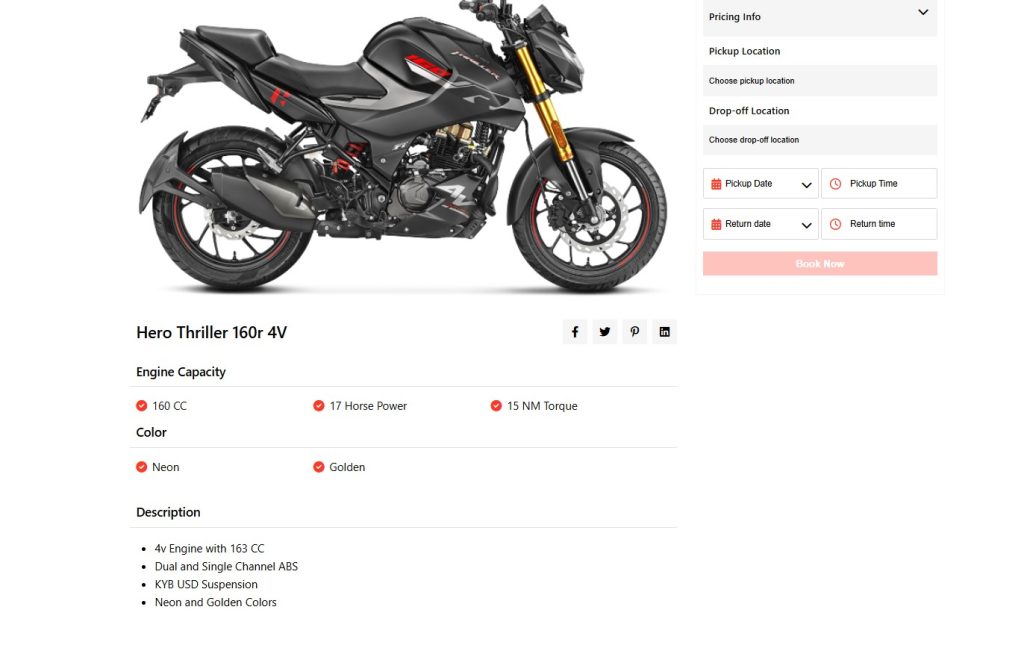
The default template front end looks like this with no extra settings.
If you select the Donut tab from the template.
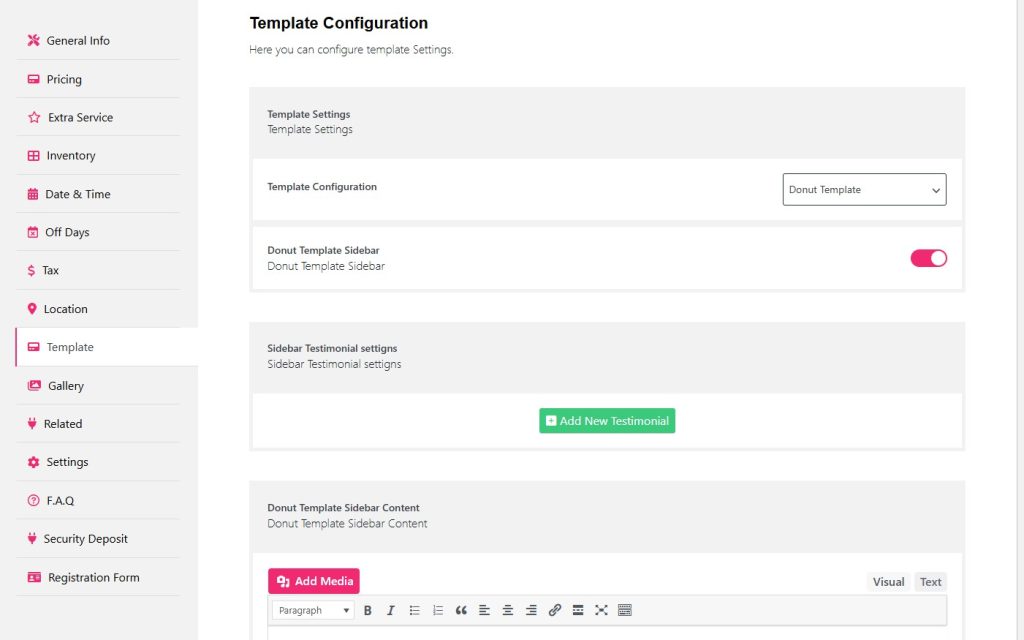
You have some extra options like enabling a sidebar for testimonials.
You can add an image and description for the testimonial.
Now click Update and see the new look.
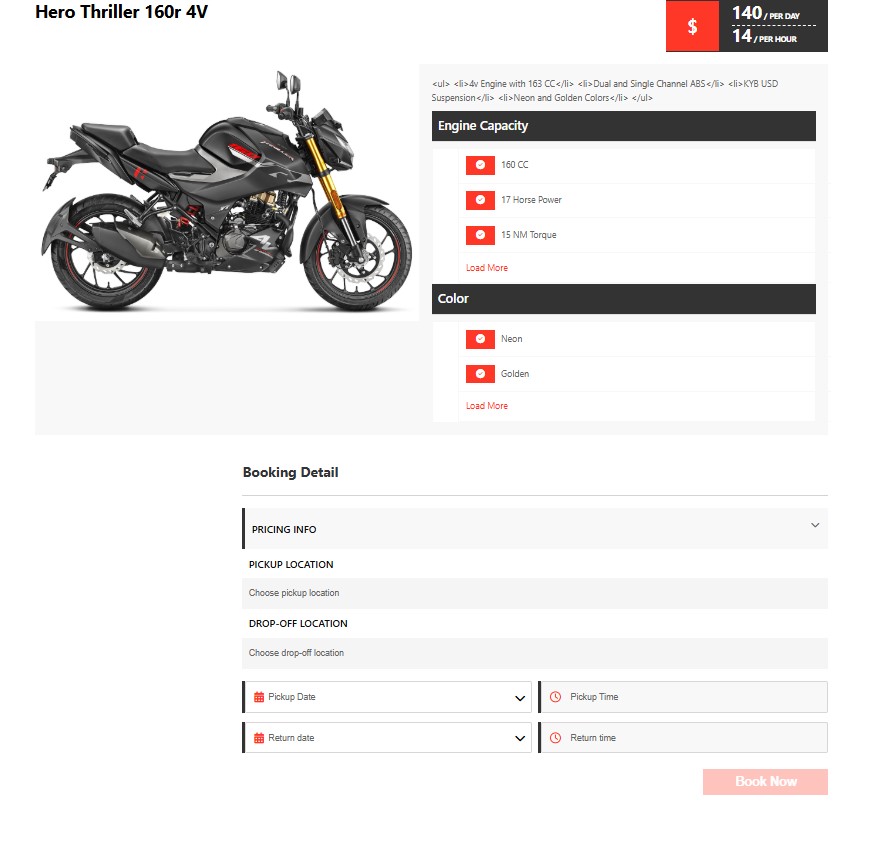
Here is the new look for your rental items using the donut template.
Now if you want to select another template, use the Muffin template.
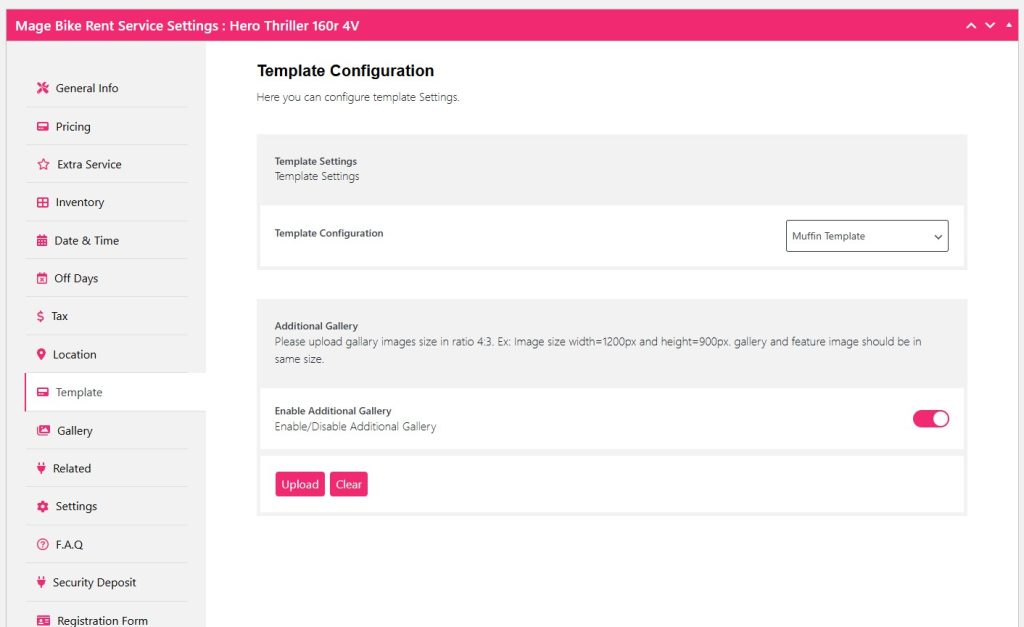
The muffin template offers an additional gallery for your rental items.
You can upload images and display your variation item product.
Click Update and see the changes.
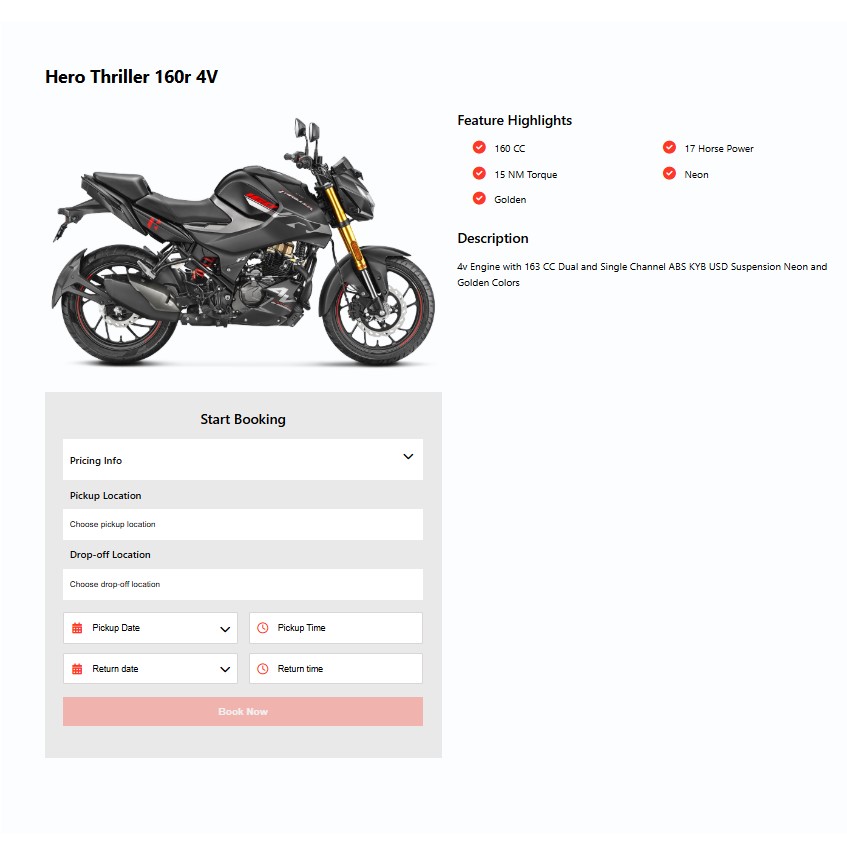
This is how your muffin template will display your rental item.
🎨 Template Override Guide
Booking and Rental Manager for WooCommerce
The Booking and Rental Manager for WooCommerce plugin supports theme-based template overrides, allowing you to customize views and booking forms without modifying the plugin’s core files.
✅ Notes #
– You must keep the same directory structure under the templates/ folder.
– For safety updates, always override templates in a child theme.
– Once placed in the theme, your custom templates will automatically be used instead of the plugin’s defaults.
🔁 How Template Override Works #
To override a template, copy the desired file from the plugin’s templates/ folder into your active theme’s root templates/ directory. The folder structure inside templates/ must be preserved exactly.
Example:
wp-content/themes/your-theme/templates/archive/grid_new.php
📂 Template Files You Can Override #
🔳 Archive Templates (Item Listings) #
| Plugin Path | Purpose | Theme Override Path |
| templates/archive/grid_new.php | Grid view layout | your-theme/templates/archive/grid_new.php |
| templates/archive/list_new.php | List view layout | your-theme/templates/archive/list_new.php |
🧾 Single Page Templates #
These templates render the single item (product/event) detail pages.
Each layout style (default, donut, muffin) includes separate views based on the booking type.
For each layout (default, donut, muffin):
| Booking Type | Plugin Path | Theme Override Path |
| Single Day | templates/single/{layout}/single-day.php | your-theme/templates/single/{layout}/single-day.php |
| Multi Day | templates/single/{layout}/multi-day.php | your-theme/templates/single/{layout}/multi-day.php |
| Resort | templates/single/{layout}/resort.php | your-theme/templates/single/{layout}/resort.php |
🔁 Replace {layout} with one of: default, donut, muffin.
📄 Booking Form Templates #
| Form Type | Plugin Path | Theme Override Path |
| Single Day | templates/forms/single-day-registration.php | your-theme/templates/forms/single-day-registration.php |
| Multi Day | templates/forms/multi-day-registration.php | your-theme/templates/forms/multi-day-registration.php |
| Resort | templates/forms/resort-registration.php | your-theme/templates/forms/resort-registration.php |


