
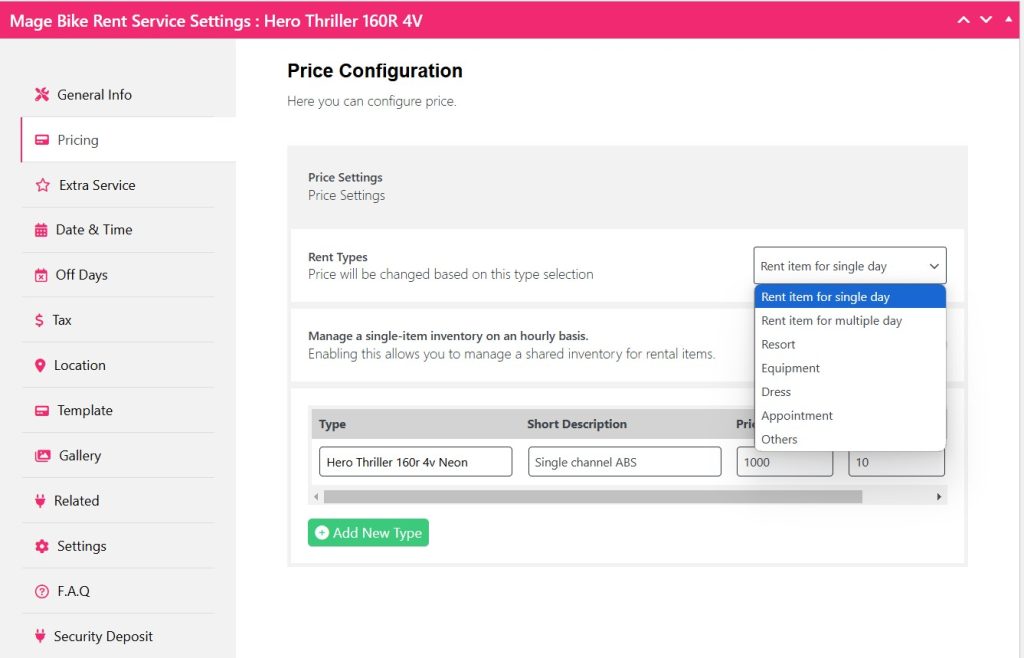
To set single-day rental pricing, go to the Pricing tab and select Rent Item for a Single Day from the Rent Types option pricing configuration.
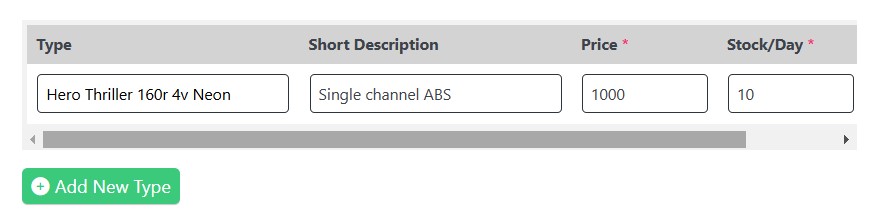
Then type in your Item name with the variant, a short description, price amount, and stock per day.
If you want to add more types as a variant with different prices, click the Add New Type button.
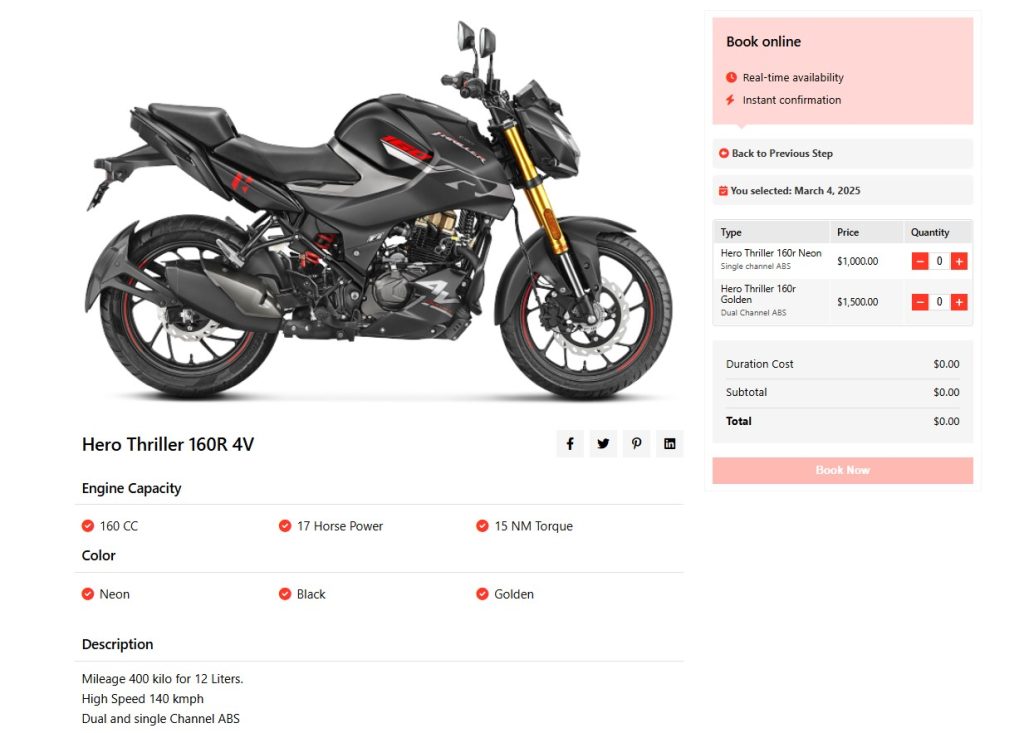
After updating, you can see the front end as a single-day booking.
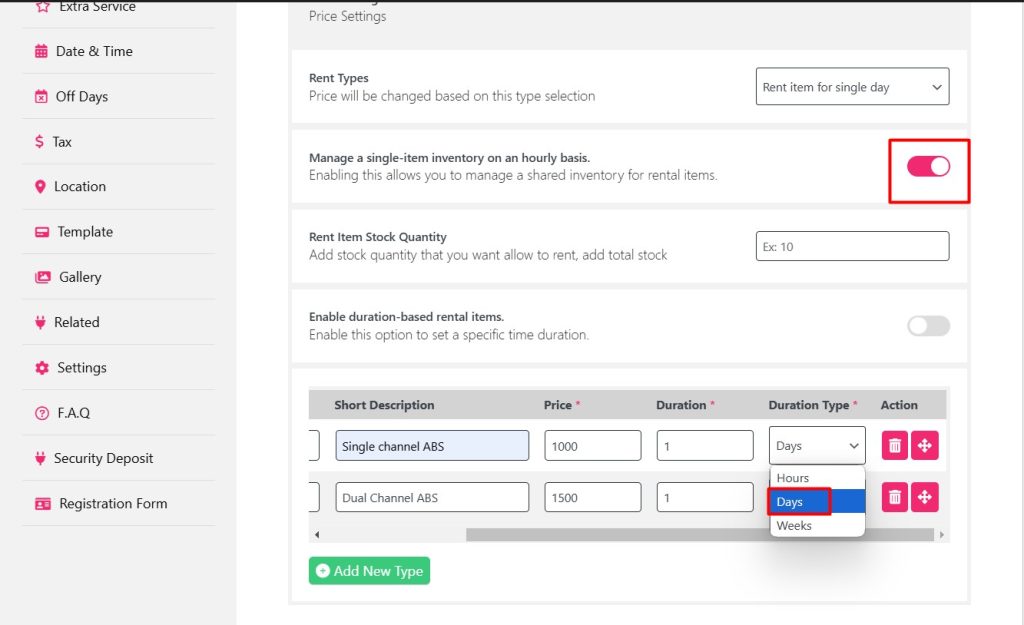
But when you toggle the Manage a single item inventory on an hourly basis, two new fields appear, one is the Duration and the other one is Duration Type.
You can change your day-wise pricing into Hours and Weeks from the Duration Type.
Also, you can add Total stock inventory for your day-wise booking from Rent Item Stock Quantity.
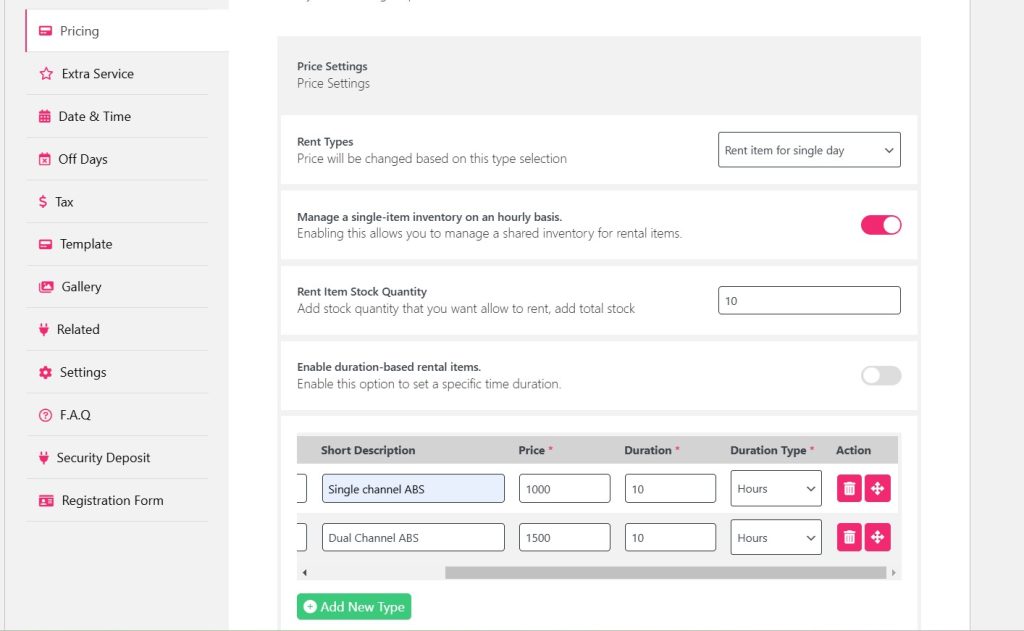
For example, if you offer a single day bike rental price with a maximum of 10 hours for rent, so you choose 10 hours.
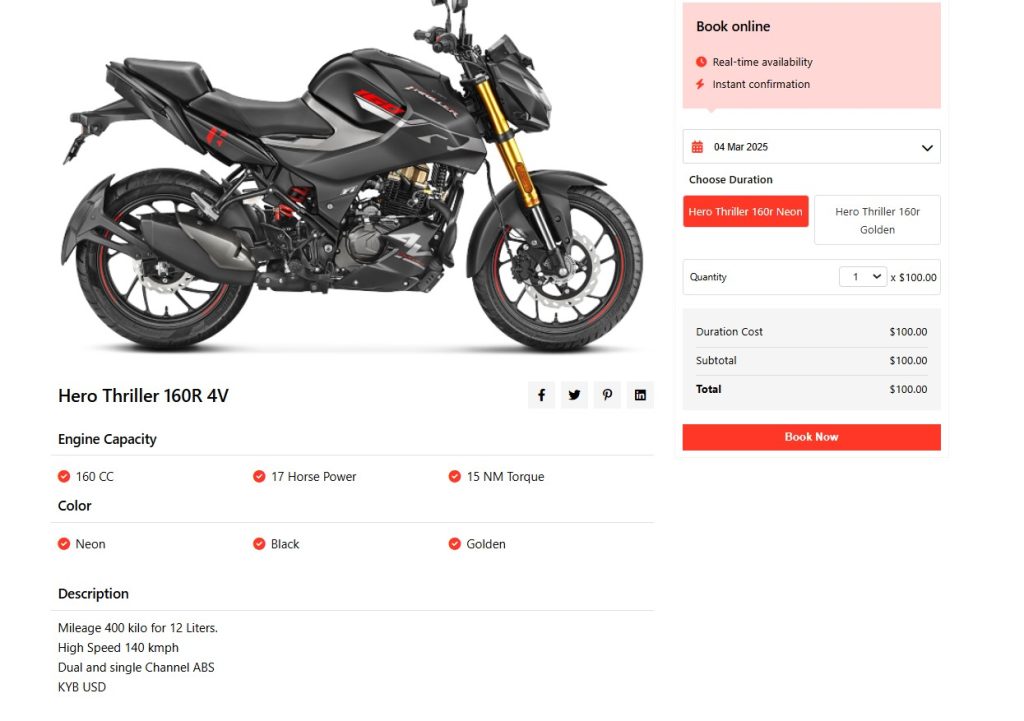
Also, you can count hourly price per hour too, like 1-hour bike rental costs $100.
Similarly, you can change the duration type to weeks and add the price for that.
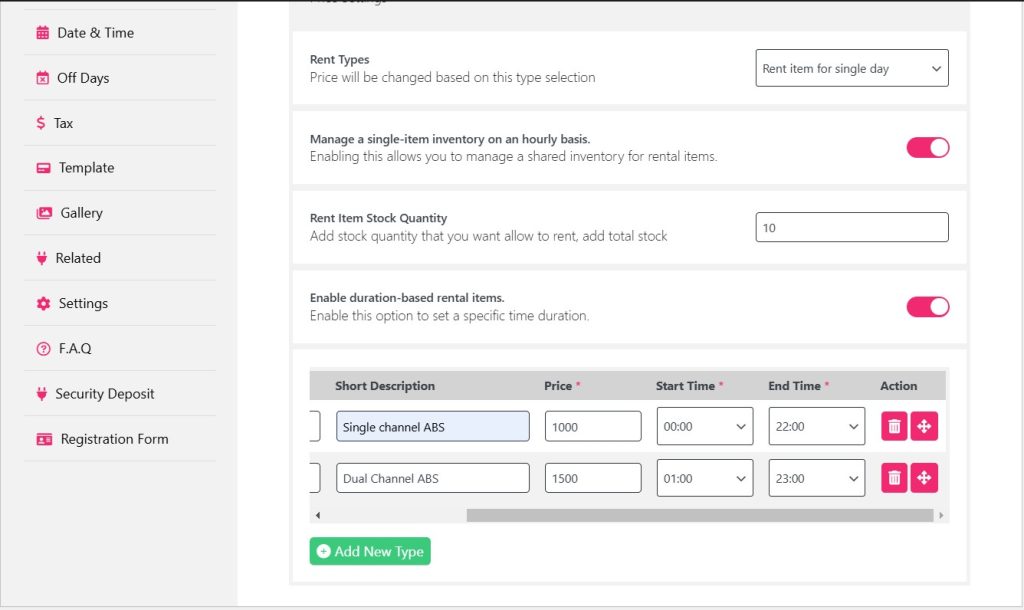
When you toggle Enable duration-based rental items, your Duration and Duration type will change to Start Time and End Time.
In this option, you can rent your item for a specific time with a start time and end time.
Make sure you mention your time in the short description to display it on the front end.
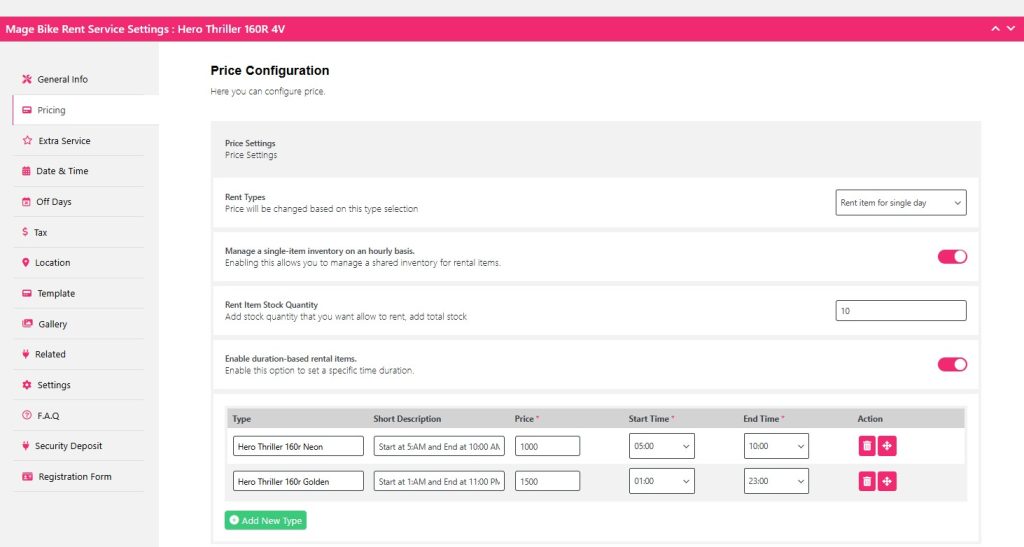
For example, you can rent a variant bike for 00:00 as a start time and 22:00 as an end time.
This way the tenant will know in which he/she should rent the bike specifically.
Once you are done with your pricing configuration for single-day rent, click Update.
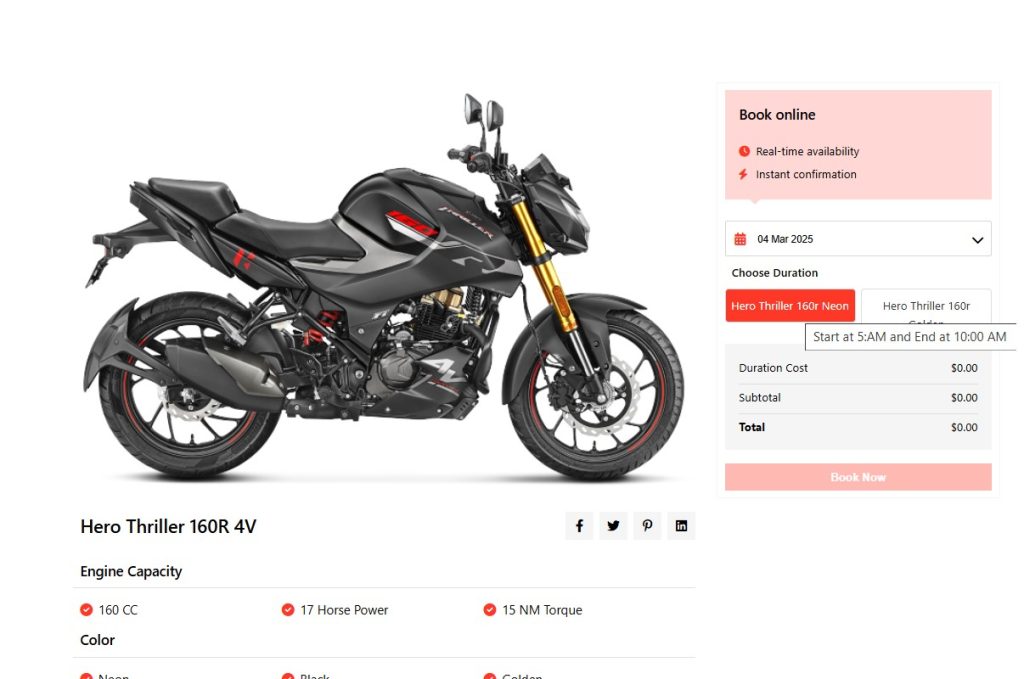
On the front end, you can see the time you have specified and also defined in the short description.
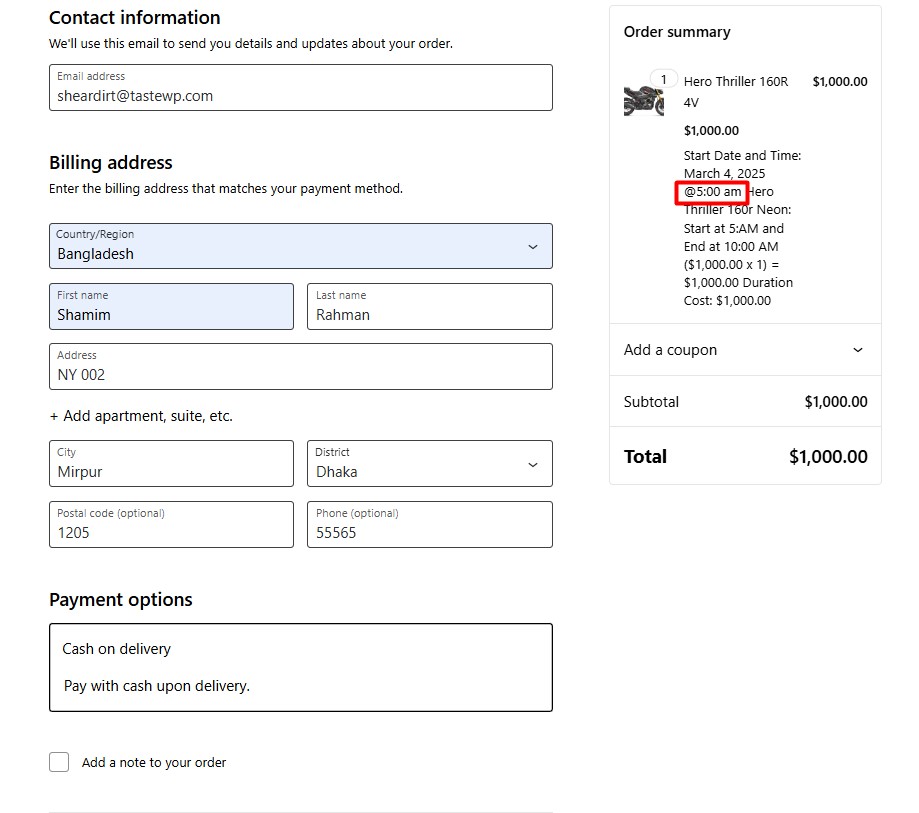
Once you book the bike the specific starting time will be shown on the cart.
For your convenience, you can also change the title and short description according to your specific time name.
For example, the Morning time will be the title and the short description will be the start time at 6:00 AM and the end time at 11:00 AM.


