
Step-by-step instructions on installing the plugin directly from the WordPress dashboard.
Example:
- Go to your WordPress Admin Panel.

2. Navigate to Plugins > Add New.
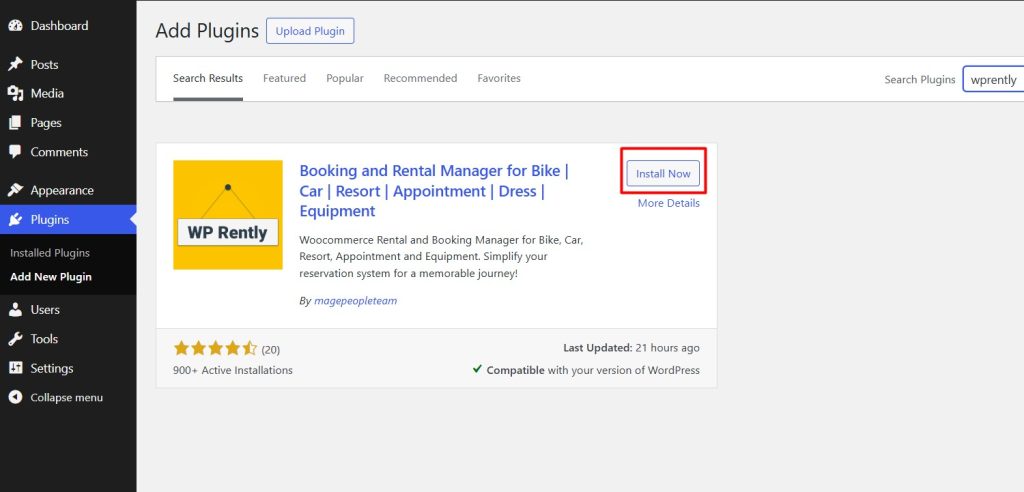
3. Search for WpRently in the search bar.
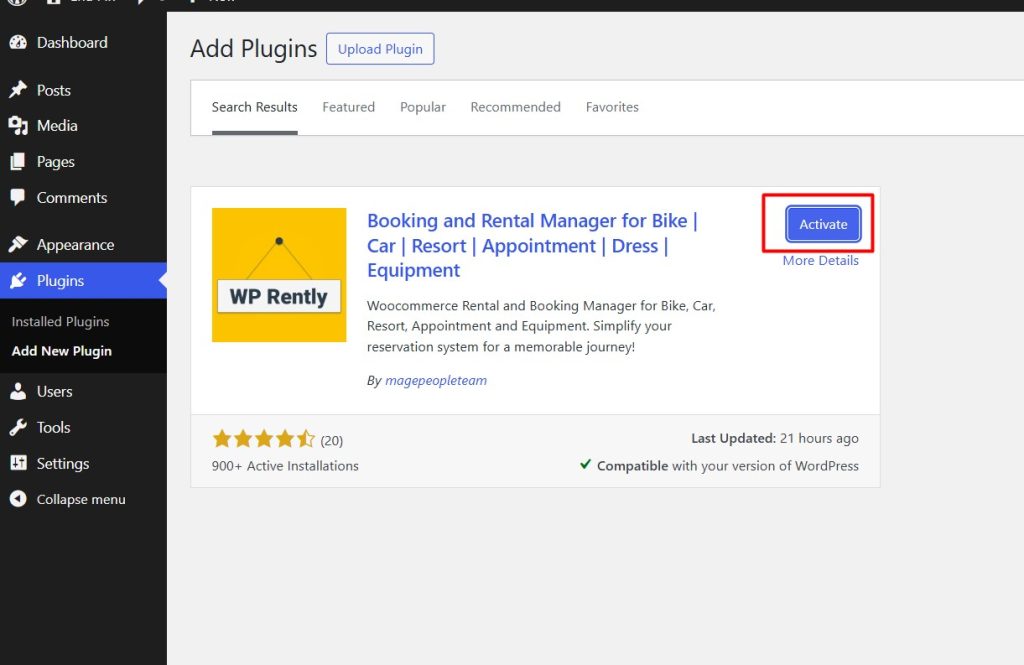
4. Click Install Now and then Activate.
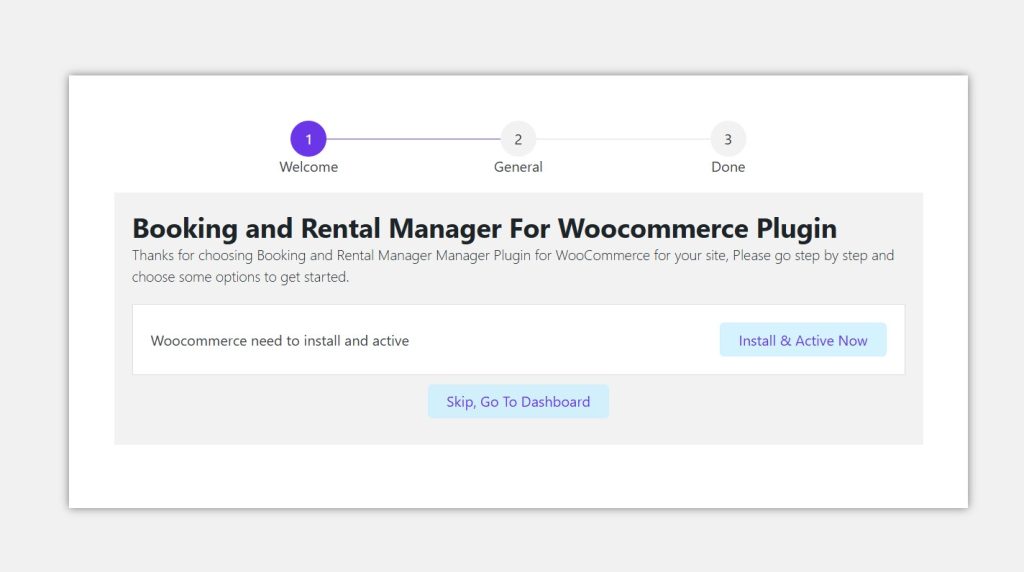
5. After activating WpRently, you will be welcomed by a setup wizard.
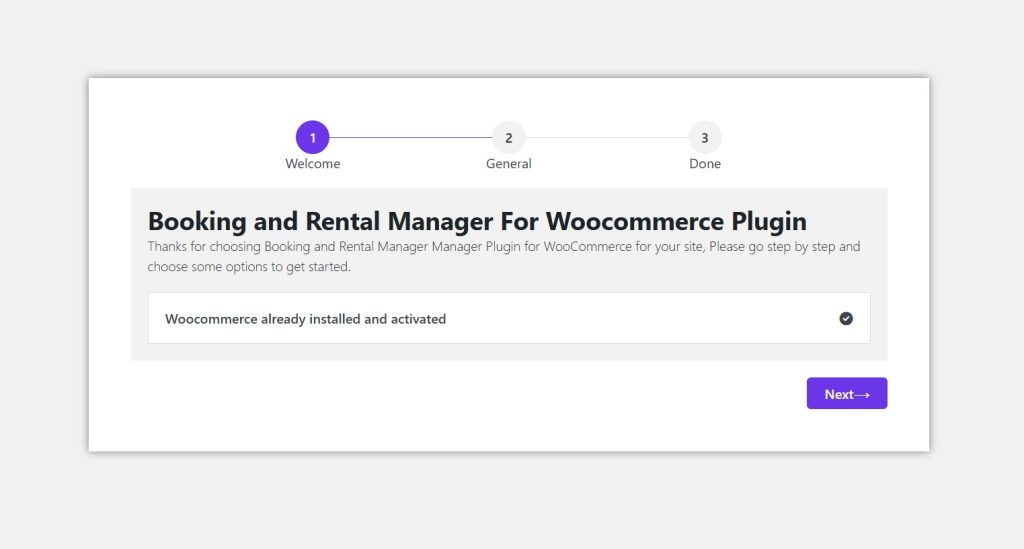
6. As WpRently requires WooCommerce, you must Install and Activate it. If you have already installed it, it will show that WooCommerce is installed.
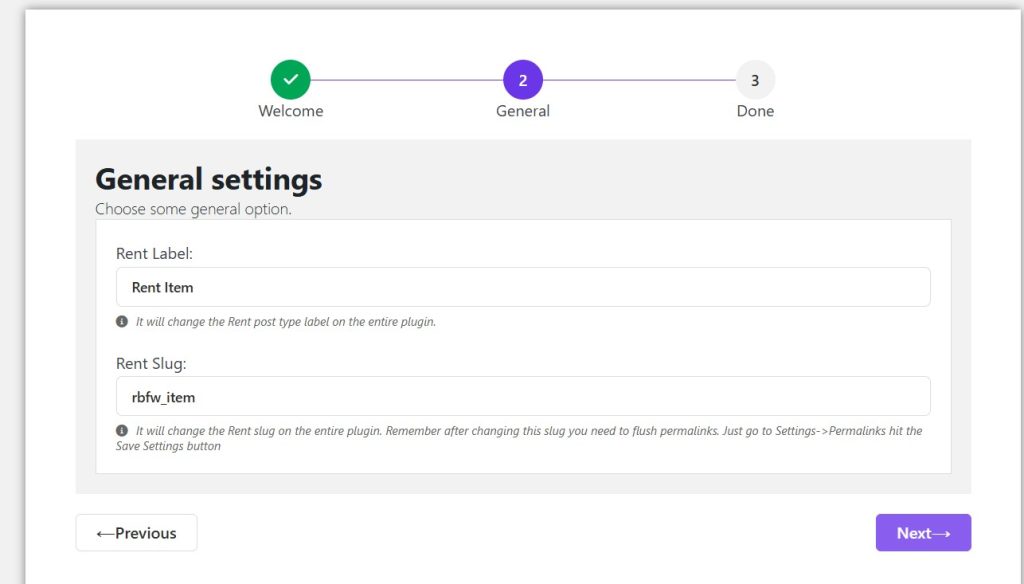
7. Click Next, add a Label and slug and click Next again.
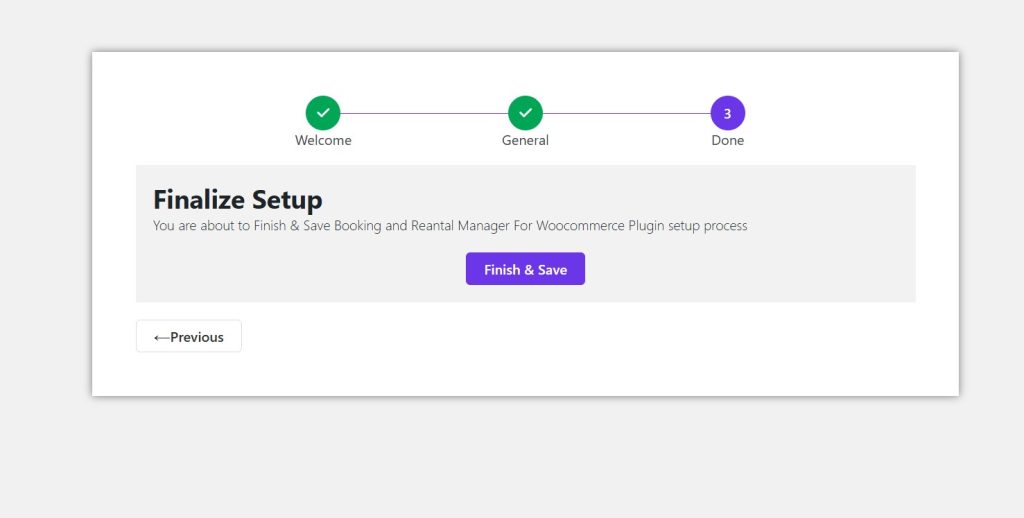
8. Finish the setup by clicking the Finish & Save button.


