
Wanna simplify Rental Bookings with WordPress?
You can simplify rental bookings with WordPress using the WpRently plugin, which lets you create a user-friendly booking system in minutes. No coding needed! WpRently simplifies everything from setting up rental items, managing availability, processing payments via WooCommerce, and even offers add-ons like seasonal pricing.
In this blog, I’ll guide you through the steps to set it up, share tips to boost your business, and answer common questions. Let’s make your rental process a breeze!
Why Rental Bookings Are Booming
The rental industry is on fire right now! According to Grand View Research, the global construction equipment rental market was worth $204.06 billion in 2024. It’s expected to reach $280.13 billion by 2030, growing at a 5.6% annual rate from 2025 to 2030. Meanwhile, according to a Statista report, the global Vacation Rentals market is expected to generate $107.87 billion in revenue in 2025. The market is projected to grow to $149.19 billion by 2030, with a Compound Annual Growth Rate (CAGR) of 6.70% from 2025 to 2030. With this massive growth, having an efficient online booking system is no longer optional; it’s a must. That’s where WordPress and WpRently come in, helping you tap into this booming market with a professional, automated booking setup that saves time and attracts customers.
If you are planning to start an equipment rental business, check out how to create an equipment rental website using WordPress.
Why Choose WordPress for Rental Bookings?
WordPress is a powerhouse for building websites, and it’s perfect for rental businesses because of its flexibility and massive plugin ecosystem. Whether you’re renting out kayaks, apartments, or event spaces, WordPress lets you create a professional, user-friendly booking system without breaking the bank. And when it comes to rentals, the WpRently plugin is a game-changer. It’s designed to handle everything from bikes to resorts, with features that make your life easier and your customers happier.
Wanna know what Rental Booking businesses you can start now in 2025? Find out in 20 Rental Business Ideas for 2025.
What is WpRently?
WpRently is a WordPress plugin that transforms your site into a dynamic rental booking system. It’s packed with features to manage bookings, set pricing, process payments, and more. All without needing a tech degree. Whether you’re a small business owner or running a large rental operation, WpRently’s free and pro versions have you covered. Plus, it integrates seamlessly with WooCommerce for secure payments and works with any WordPress theme.
Step-by-Step Guide to Simplify Rental Bookings with WpRently
Let’s break down how to set up WpRently and get your rental business running smoothly. Follow these steps, and you’ll be taking bookings like a pro in no time!
Step 1: Install and Activate WpRently
First things first, you need to get WpRently on your WordPress site. Here’s how:
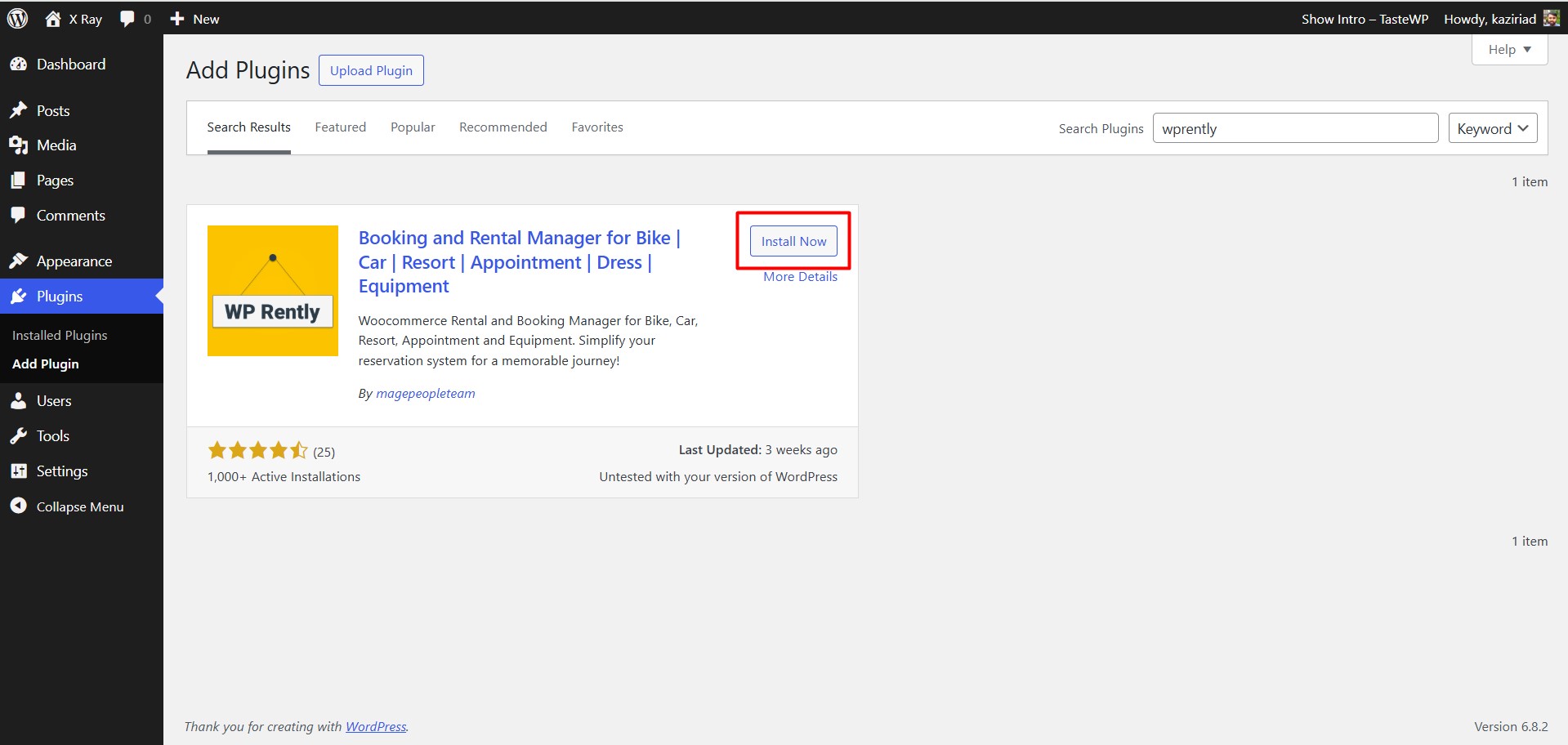
- Log in to Your WordPress Dashboard: Head to your WordPress admin panel.
- Go to Plugins: Click “Plugins” > “Add New” in the left menu.
- Search for WpRently: Type “WpRently” in the search bar, and it should pop up as “Booking and Rental Manager for Bike | Car | Resort | Appointment | Dress | Equipment.”
- Install and Activate: Click “Install Now,” then “Activate.”
- Complete the Setup Wizard: After activation, WpRently’s setup wizard will guide you through initial settings. You’ll choose a payment system (WooCommerce or Mage Payment System), set a CPT (Custom Post Type) label and slug, and hit “Finish Setup.” Easy peasy!
Pro Tip: The setup wizard is super intuitive, so even if you’re new to WordPress, you’ll breeze through it. Check the WpRently documentation for detailed setup instructions.
You can find the installation instructions in How to install Rent and Booking Manager.
Step 2: Create a Rental Item
Now that WpRently is active, let’s add your first rental item—say, a bike or a vacation home.
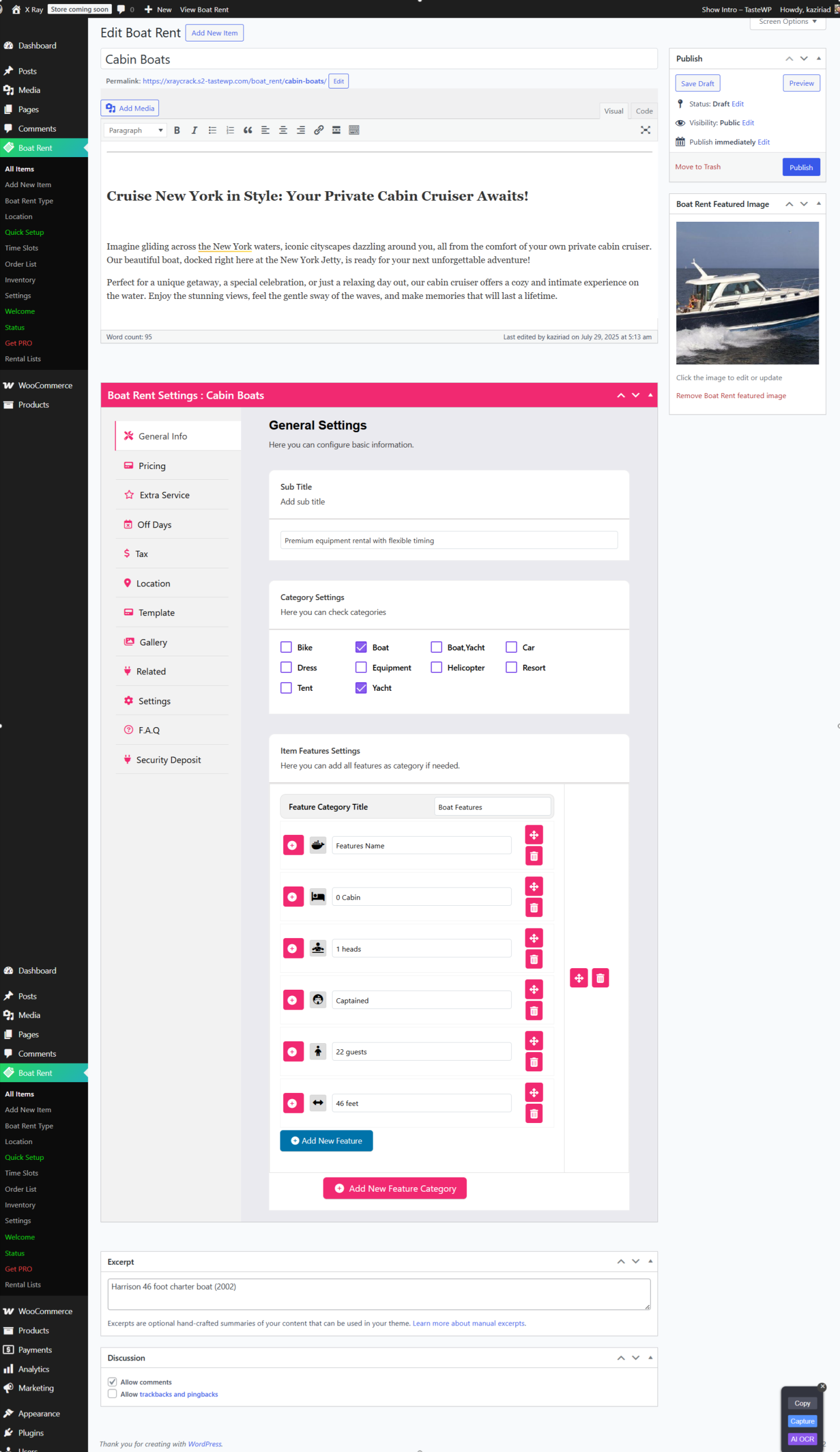
- Navigate to Rent Items: In your WordPress dashboard, you’ll see a new “Rent Item” menu. Click it, then select “Add New Item.”
- Add Details: Give your rental item a catchy title (e.g., “Cabin Boat”) and a description that highlights its features.
- Configure Settings:
- General Info: Add features like “Cabin” or “Head” to entice customers.
- Template: Choose from Muffin, Donut, or Classic templates for the item’s display.
- Gallery: Upload high-quality images to showcase your rental.
- Pricing: Set pricing (hourly, daily, or monthly) and specify minimum/maximum booking days.
- Extra Services: Offer add-ons like insurance or delivery for an extra fee.
- Registration Form: Use the default form or create a custom one under “Rent Item” > “Registration Form” for specific customer details.
- FAQ: Add common questions to address customer concerns upfront.
- Set a Featured Image: Upload a thumbnail image for your rental item to make it pop on your site.
If you are still stuck on adding a rental item, checkout the whole steps from WpRently’s Learning documentation.
Step 3: Preview and Publish
Before going live, preview your rental item by clicking the “Desktop” icon next to the “Publish” button. Check that everything looks good on images, pricing, and descriptions. Once you’re happy, hit “Publish” to make it live. Your customers can now see and book the item on your site!
Quick Note: WpRently’s front-end display is responsive, so it looks great on phones, tablets, and desktops. Plus, it’s SEO-friendly, helping your rentals rank higher on Google.
Step 4: Customize Your Booking System
WpRently’s flexibility is what makes it shine. Here are some ways to tailor it to your business:
- Shortcodes: Use shortcodes like to display specific rental lists (e.g., bikes for single-day rentals) or for a grid-style layout. These can be added to any page or post.
- Payment Options: Integrate WooCommerce for payments via credit cards, PayPal, or bank transfers. The Pro version adds Stripe and PayPal for more flexibility.
- Booking Calendar: The Pro version includes a detailed calendar to track bookings and availability, making scheduling a breeze.
- Email Notifications: Set up automatic emails to confirm bookings or send reminders (Pro feature).
Step 5: Manage Bookings Like a Pro
Once bookings start rolling in, WpRently’s dashboard makes management a snap. You can:
- View and filter orders by item, date, or customer.
- Check inventory to avoid double bookings.
- Export reports in CSV format (Pro feature) for business insights.
- Send PDF receipts to customers (Pro feature) for a professional touch.
Free vs. Pro: Which WpRently Version is Right for You?
WpRently offers a free version that’s perfect for small businesses. This includes:
- Single and multi-day rental support.
- Basic pricing and inventory management.
- WooCommerce payment integration.
- Shortcodes for easy display.
- Responsive, SEO-friendly design.
For larger businesses or those wanting extra polish, the Pro version (starting at $49/year) adds:
- PayPal and Stripe integration.
- Booking calendar with order details.
- CSV report exports and PDF receipts.
- Customizable email notifications.
- Advanced pricing rules (e.g., seasonal discounts).
Not Sure Which to Choose? Try the free version first—it’s robust enough for most startups. If you require advanced features, the Pro version is a worthwhile investment. Visit WpRently’s pricing page for details.
Why WpRently Stands Out for Rental Businesses
- Versatility: Supports rentals for cars, bikes, dresses, equipment, resorts, and more.
- No Coding Needed: The intuitive interface and setup wizard make it beginner-friendly.
- Scalability: Works for small startups and large enterprises alike.
- SEO and AEO Optimized: WpRently’s structure helps your listings rank on Google and answer user queries effectively (e.g., “best bike rentals near me”).
- Local Business Friendly: Add pickup/drop-off locations to cater to local customers, boosting LEP for searches like “car rental in “[your city].”
- Multilingual Support: Reach global customers with translation plugins like WPML.
Frequently Asked Questions (FAQs)
Here are some common questions about using WpRently to simplify rental bookings, answered to help you get started quickly:
1. Can I use WpRently for any type of rental business?
Absolutely! WpRently is super versatile and works for rentals like cars, bikes, dresses, equipment, vacation homes, and even appointments. You can customize each rental item with specific pricing, availability, and add-ons to fit your business needs.
2. Do I need WooCommerce to use WpRently?
Yes, WpRently relies on WooCommerce for payment processing and order management. You’ll need to install and activate WooCommerce (it’s free!) before setting up WpRently. The setup wizard will guide you through this step.
3. Is the free version of WpRently enough for a small business?
For most small businesses, the free version is a great starting point. It includes single/multi-day rentals, basic pricing, inventory management, and shortcodes for displaying listings. If you need advanced features like Stripe payments or PDF receipts, consider upgrading to Pro.
4. How do I display my rental items on my website?
WpRently provides shortcodes to make this easy. For example, use to show all rentals or for single-day bike rentals. You can add these to any page or post via the WordPress editor. Check the documentation for more shortcode options.
5. Can I set different prices for different seasons?
Yes, with the Pro version, you can set seasonal pricing or special rates for specific dates. This is great for businesses like vacation rentals that charge more during peak seasons. The free version supports basic hourly or daily pricing.
6. Is WpRently mobile-friendly?
Yep! WpRently’s front-end design is fully responsive, so your booking system looks great on phones, tablets, and desktops. This ensures a smooth experience for customers booking on the go.
7. How do I prevent double bookings?
WpRently’s inventory management feature tracks availability for each rental item. When a customer books an item, it’s automatically marked as unavailable for those dates, preventing overbooking.
8. Can I send booking confirmations to customers?
In the Pro version, you can set up automatic email notifications for booking confirmations, cancellations, or reminders. You can also send PDF receipts for a professional touch. The free version relies on WooCommerce’s default order emails.
9. Does WpRently support local SEO for my rental business?
Definitely! You can add pickup/drop-off locations and use location-specific keywords in your listings (e.g., “bike rentals in Miami”). This helps your site rank for local searches and improves visibility for nearby customers.
10. Where can I get help if I run into issues?
WpRently’s documentation is a great resource for setup and troubleshooting. For Pro users, you get priority support from MagePeople. You can also check community forums or contact their team for assistance.
Tips to Boost Your Rental Business with WpRently
- Optimize Listings: Use descriptive titles, high-quality images, and detailed FAQs to attract customers and improve SEO.
- Leverage Shortcodes: Display rentals on your homepage or dedicated pages for easy access.
- Promote Add-Ons: Offer extras like insurance or guided tours to increase revenue (Pro feature).
- Use Analytics: Track bookings and customer behavior with Pro’s CSV reports to refine your strategy.
- Go Local: Add location-specific keywords (e.g., “Miami bike rentals”) to your listings for better GEO and LEP performance.
Ready to Simplify Your Rental Bookings?
With WpRently, you can say goodbye to manual booking headaches and hello to a simplified, customer-friendly system. Whether you’re renting out scooters or vacation homes, this plugin makes it easy to manage bookings, process payments, and grow your business all from your WordPress site.
Ready to get started? Download the free version of WpRently from WordPress.org or check out the Pro version at MagePeople. For setup details, head to the WpRently documentation.