
The inventory tab will only appear for Multi-Day, Dress, and Equipment pricing types.
Other pricing types have a built-in stock inventory field.
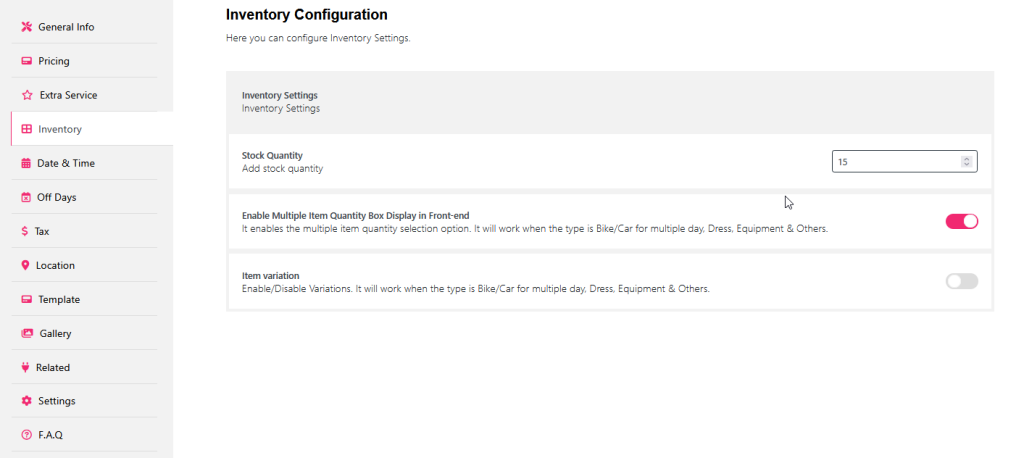
Under inventory settings, define your stock quantity and toggle the Enable Multiple Item Quantity Box Display in Front-End.
Now to display inventory, you need to do one extra setting.
Navigate to Settings tab
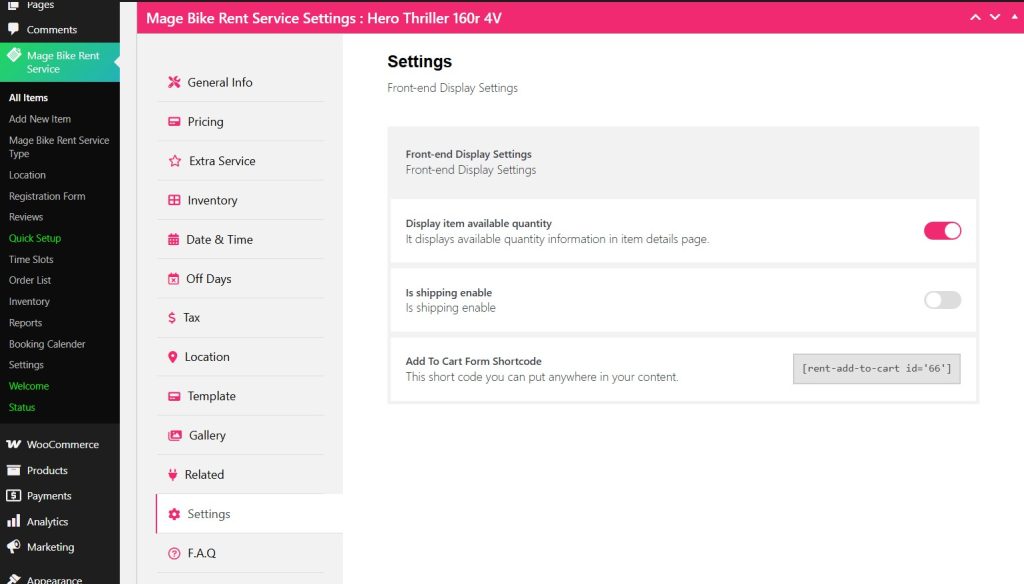
Now to display your quantity box on the front end, toggle the Display Item Available Quantity.
Then click Update and check your front end.
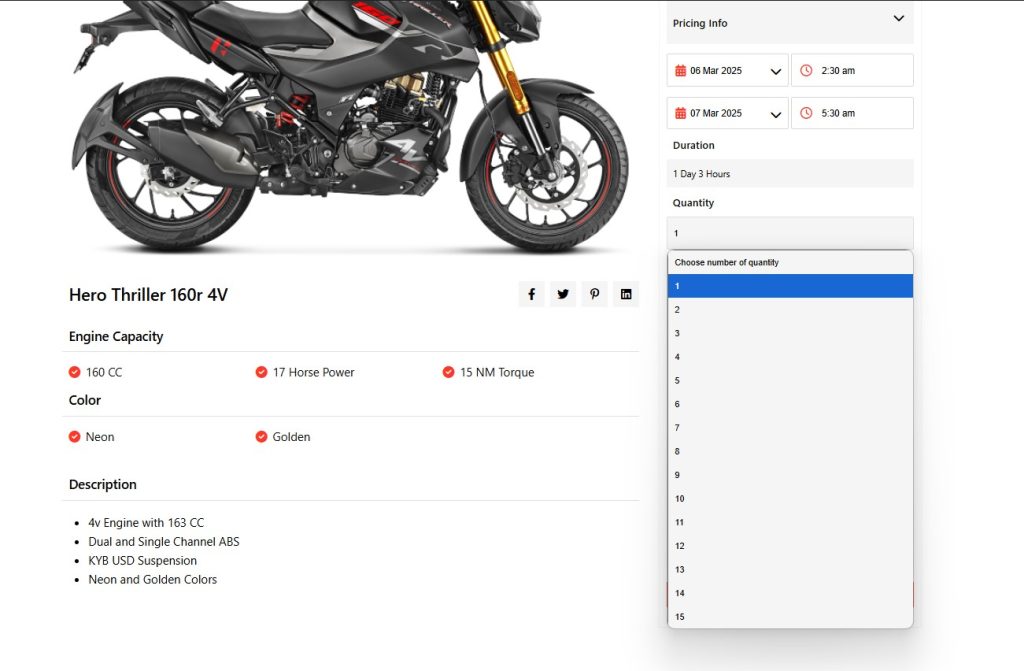
Well, you can see how Quantity is displayed in a drop-down way.
You can also display variables for the Rental items.
To do that, again go back to your Inventory tab.
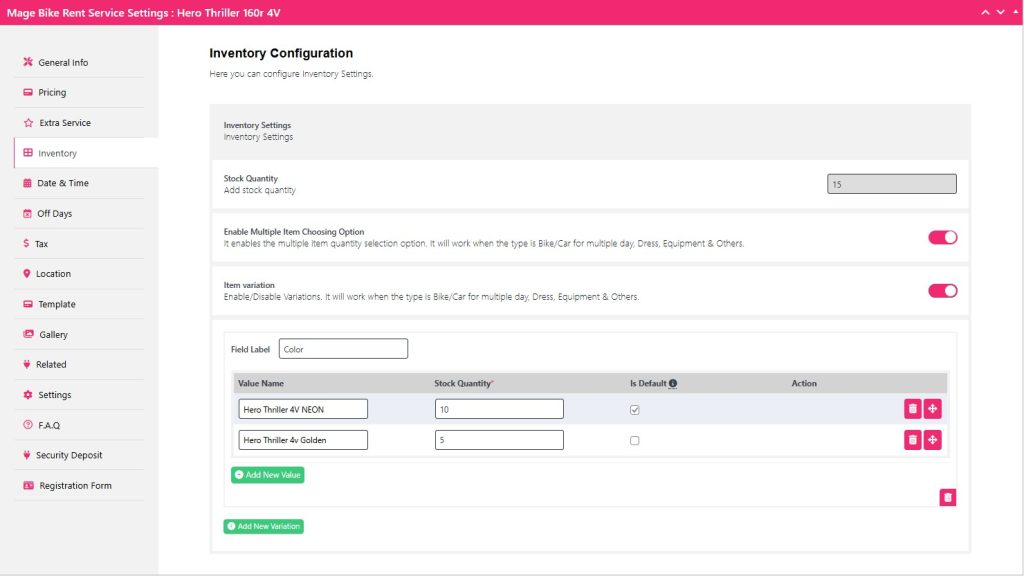
Toggle the Item Variation and type Field Label, Value Name, and Stock Quantity. Then, make one variable the default by checking Is Default.
For example, here the Field Label is Color. The two variables are added as Hero Thriller 4v Neon and Golden and the stock quantity is distributed based on your total stock quantity.
Click Update and check the changes in the front end.
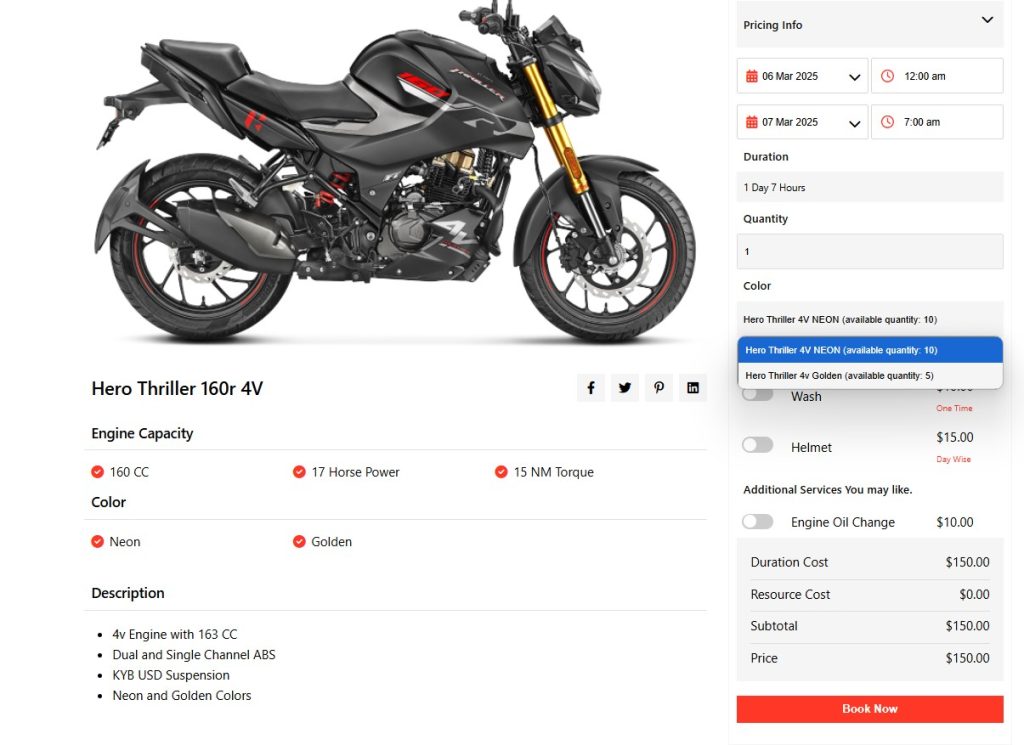
Great, you can see how the variable is displayed along with the quantity amount.


