
Adding a Multiple Day pricing is similar to adding a single day.
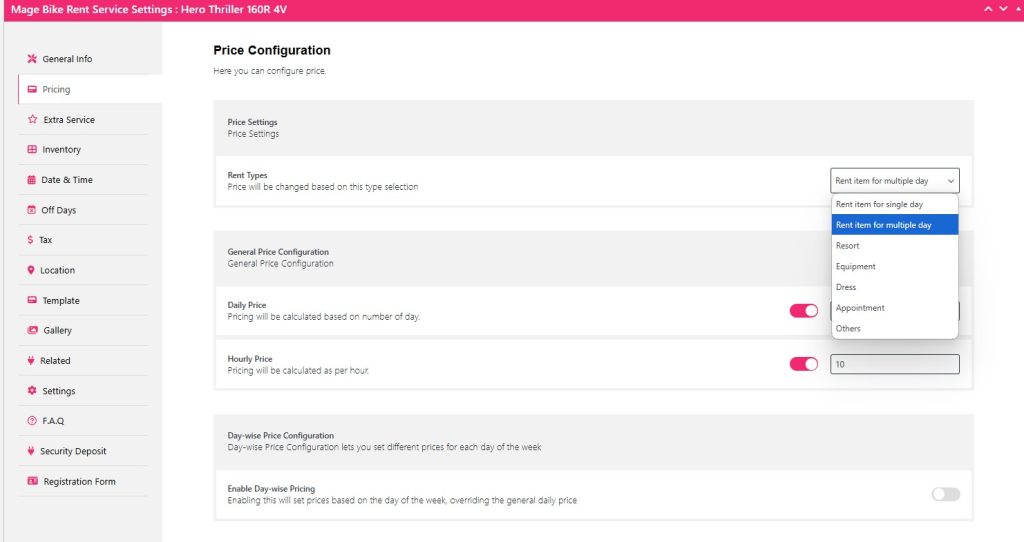
From your Pricing tab, select Rent Type as Rent Item for multiple days.
Since this is a multi-day, you will have two options to work with and display on your front end: daily price and hourly price.
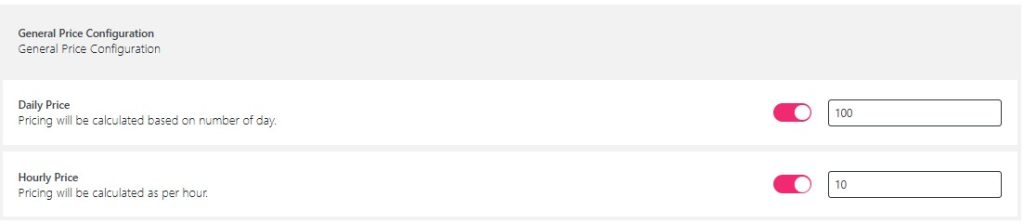
To rent your bike for multiple days, toggle Daily Price and Hourly Price and define the amount as daily or hourly.
Now toggle on Enable Day Wise Price Configuration
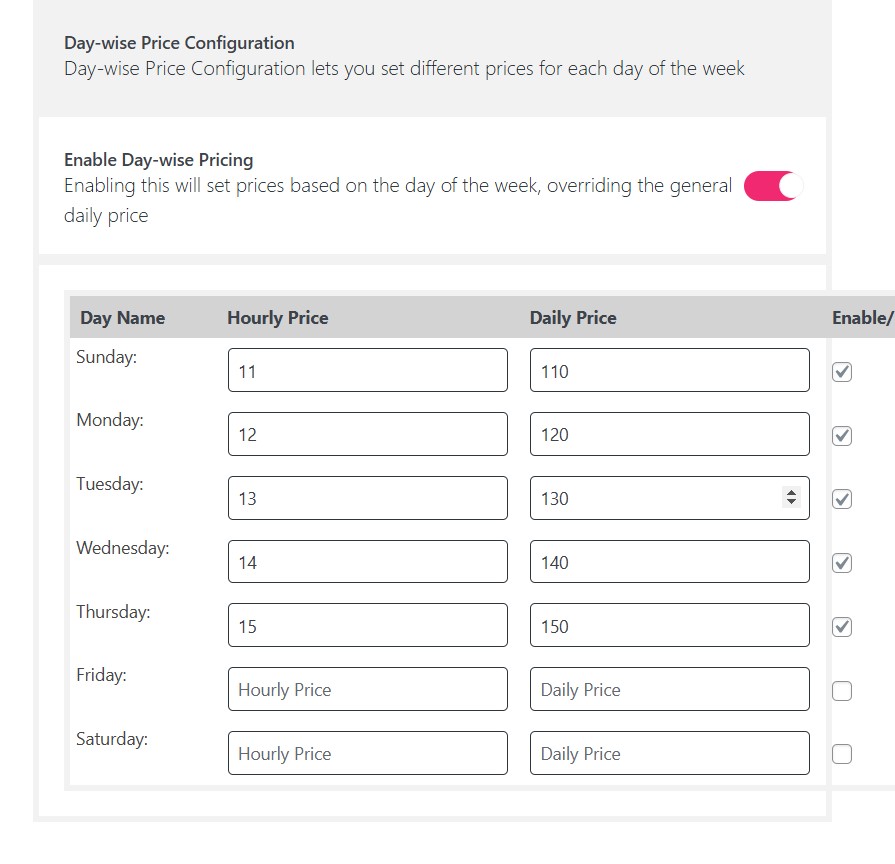
Then for each day add the Price for hourly and daily and check that to enable it.
The one which you keep empty will follow the default general price configuration.
Now there is one extra thing you need to do before updating, go to the Date & Time tab.
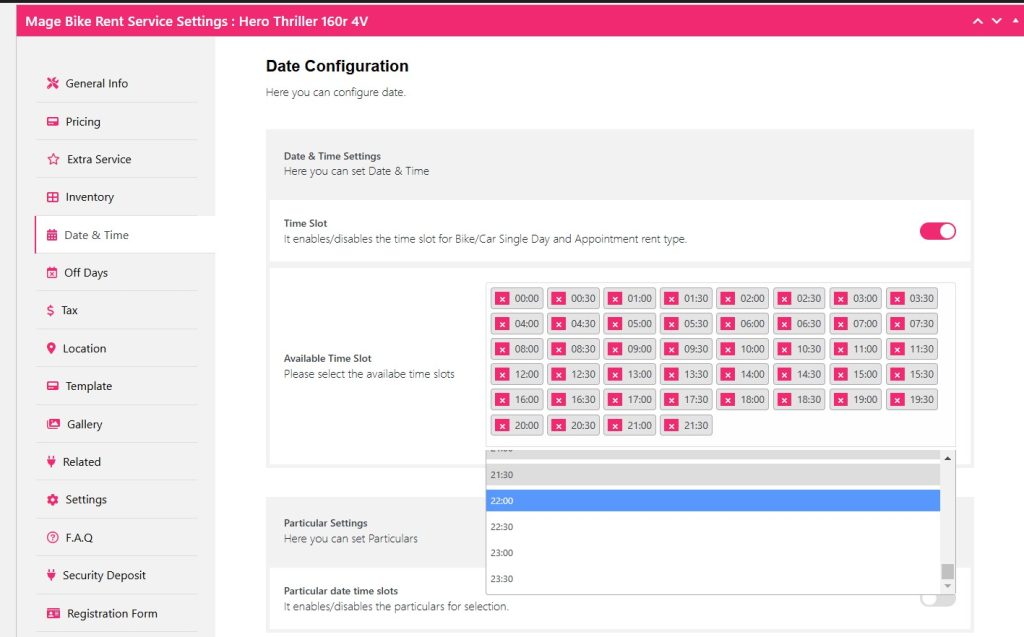
Toggle the Time slot and from the Available Time Slot add your times.
If you don’t add and enable the time slot, your pickup time won’t show on the front end.
Now click Update and check your Item at the front end.
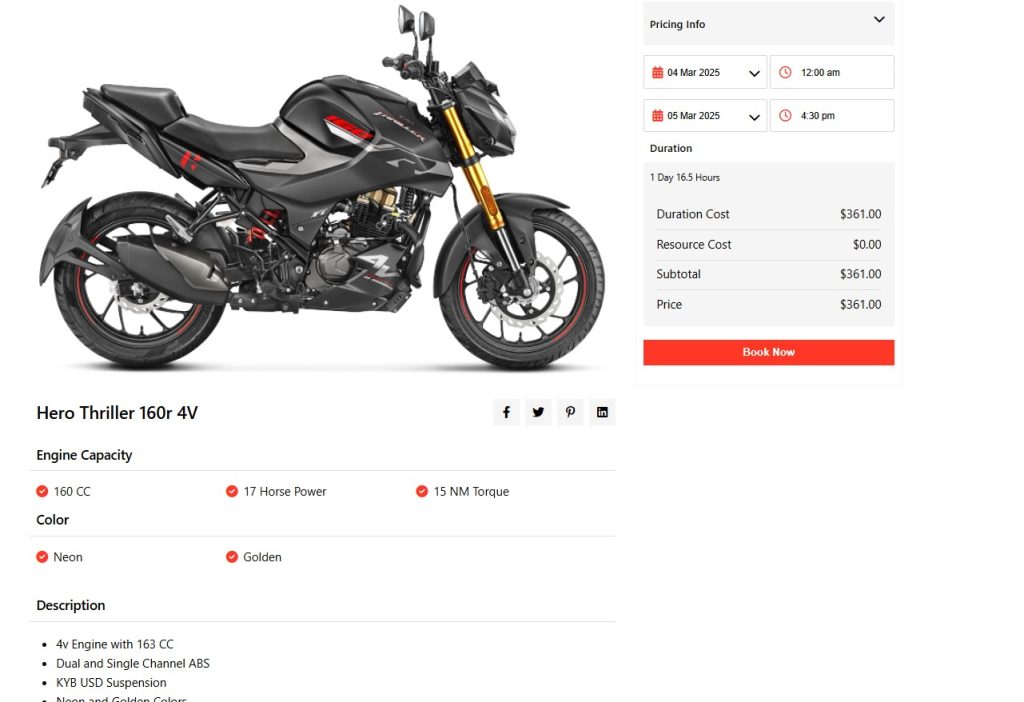
Well, you can see the front end, where you choose a date and pickup time and return date and return time.
Based on that the price is calculated as you have given for that specific day and time.
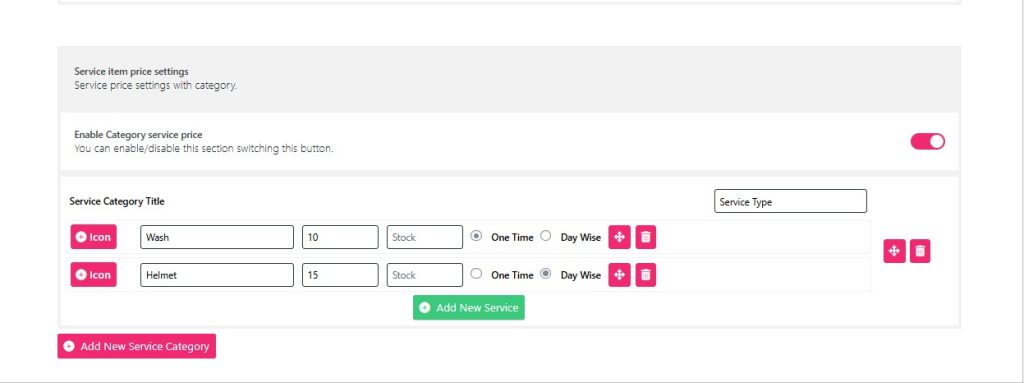
If you toggle the Enable Category Service Price, you can add day wise and one time service.
For example, Wash is time and helmet rent is day-wise defined.
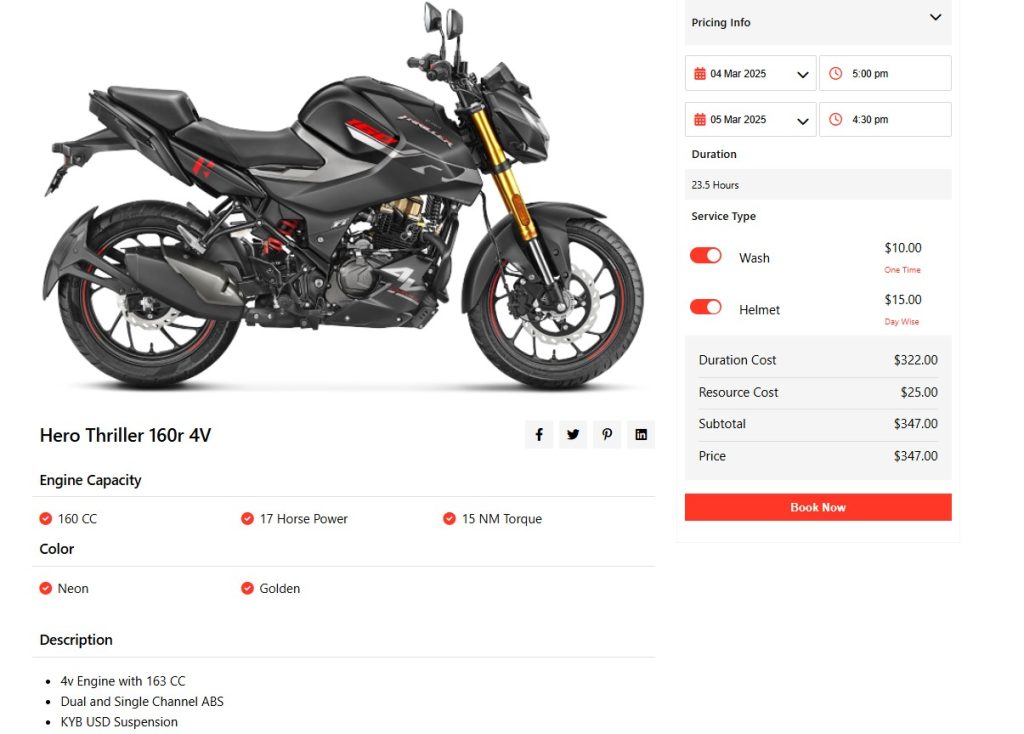
From front end you can see the category service price.


